
Tour of the interface
Fable's window has a familiar, calm shape: a slim ribbon on the far left, collapsible side panels, tabs across the top, and your note in the middle. This tour names each region so the rest of the documentation has a shared vocabulary.
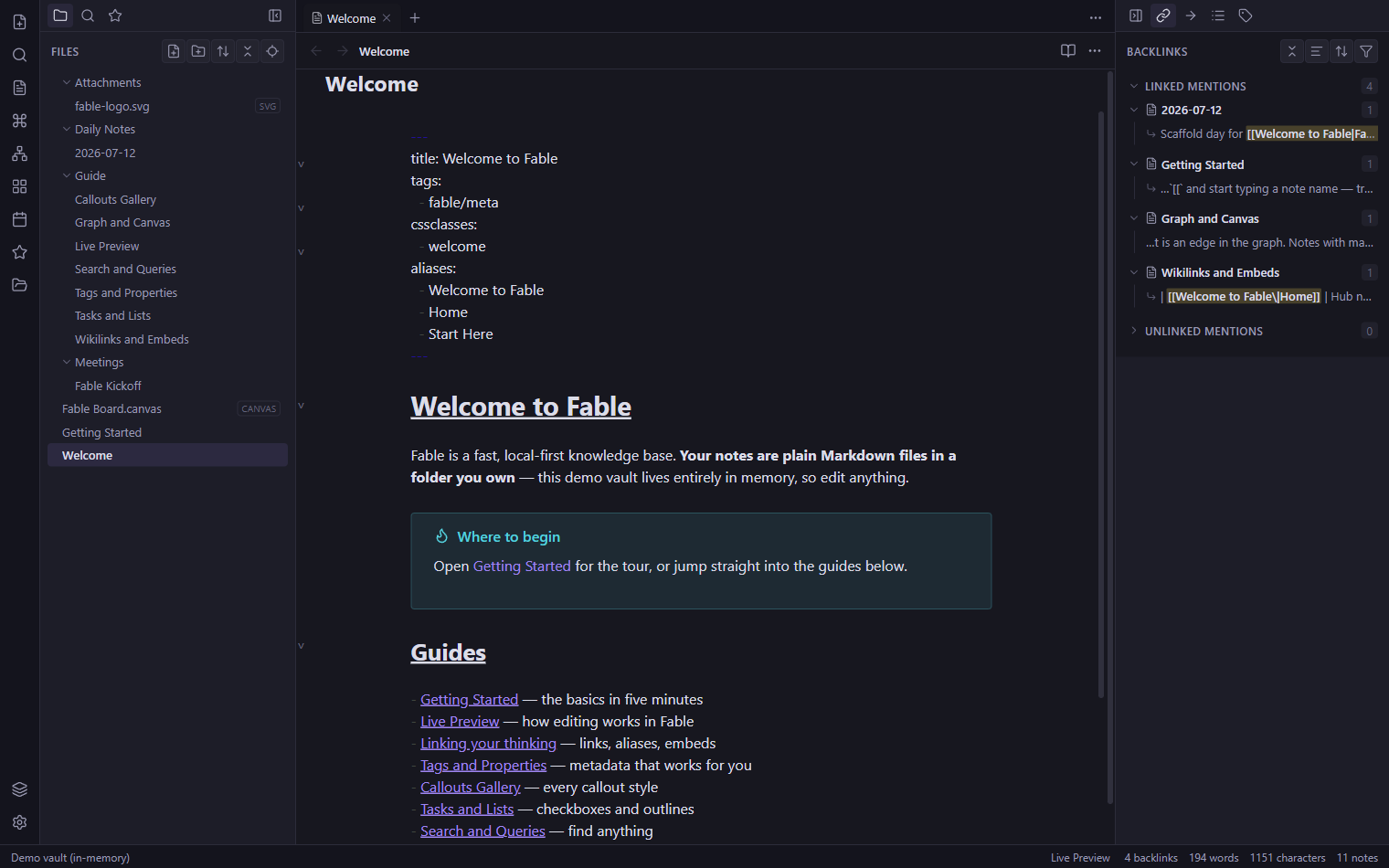
The regions of the window
From the outside in, the workspace is made of a handful of named regions.
| Region | Where | What it holds |
|---|---|---|
| Ribbon | Far-left vertical strip | One-click icons for common actions: open the quick switcher, graph view, command palette, create a new canvas, and more. Icons appear as you enable features. |
| Left sidebar | Between ribbon and center | A tab group for side panels: File explorer, Search, Bookmarks and Tags. Collapsible and resizable. |
| Central area | Middle | One or more tab groups holding your open views: the editor, graph, canvas and so on. This is where you work. |
| Right sidebar | Right edge | A tab group for contextual panels: Backlinks, Outgoing links, Outline, Tags and the local graph. Collapsible and resizable. |
| View header | Top of each view | The note's title, back and forward navigation, the reading/editing toggle, and a more-options menu. |
| Tab bar | Top of each tab group | The row of open tabs, a new-tab button, and the tab-group options menu. |
| Status bar | Bottom edge | At-a-glance details such as word and character count, backlink count and cursor position. |
Working with the sidebars
Each sidebar opens and collapses independently, so you can give your writing the full width of the window when you want to focus.
- Click the collapse handle at a sidebar's inner edge to toggle it, or run Toggle left sidebar / Toggle right sidebar from the command palette.
- Drag a sidebar's inner border to resize it. The width and collapsed state are remembered with your layout.
- Panels are just tabs. Drag a panel's icon above or below another to see two panels at once, or drag it to the other side of the window.
Opening the core views
Most of Fable's features are opened the same few ways: from the ribbon, from the command palette (Ctrl P), or with a hotkey.
| View | How to open | Learn more |
|---|---|---|
| File explorer | Left sidebar tab | Files & folders |
| Search | Left sidebar tab, or Ctrl Shift F | Search |
| Quick switcher | Ctrl O | Quick switcher |
| Command palette | Ctrl P | Command palette |
| Graph view | Ribbon icon, or the command palette | Graph view |
| Backlinks & Outline | Right sidebar tabs | Backlinks |
The editor in the middle
The center of the window is where you read and write. A note can be shown in three ways: Live Preview (formatted text you can edit in place), Source mode (the raw Markdown), and Reading view (a clean, rendered page). Press Ctrl E to flip between editing and reading, or use the toggle in the view header.
Open any note, press Ctrl E a couple of times to feel the reading and editing views, then press Ctrl P and type a few letters to see how the command palette finds actions. These two keys will carry you a long way.
The next section goes deep on those editing modes. If you would rather organize first, jump to files, folders and attachments.